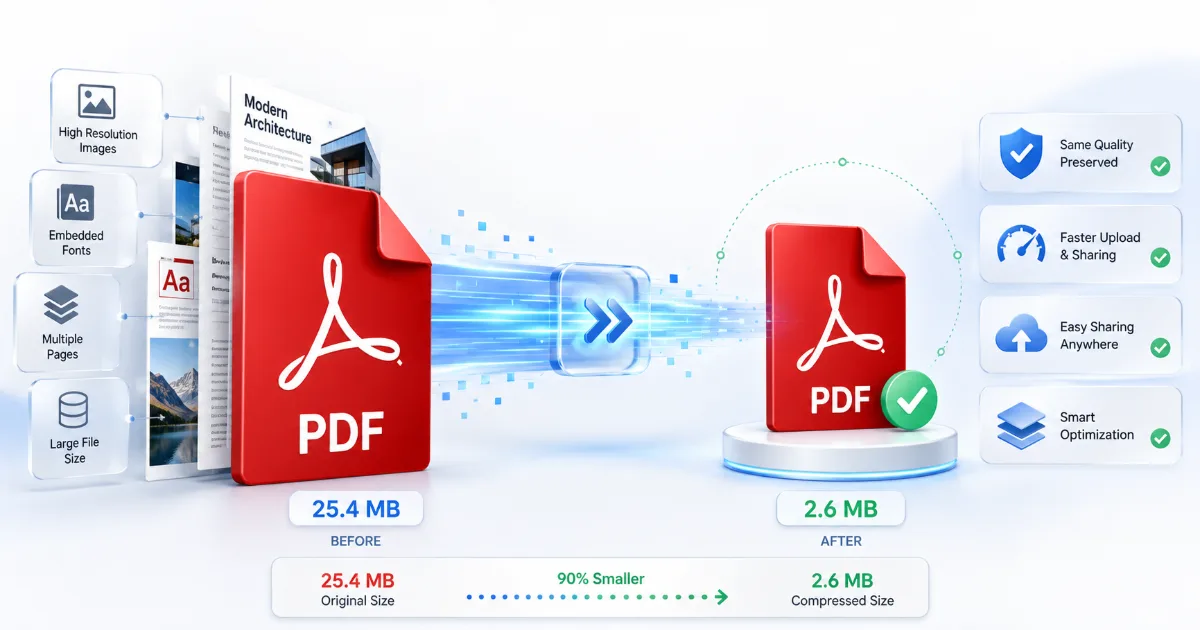
Large PDF files can become inconvenient very quickly. They may be too large to email, slow to upload, difficult to share, and unnecessarily heavy for cloud storage or mobile devices.
The good news is that you can often compress a PDF without losing quality in any noticeable way. The goal is not to make the file as small as technically possible. A better approach is to remove unnecessary data, optimize oversized images, and choose compression settings that preserve text clarity, images, formatting, links, and overall usability.
This guide explains how PDF compression works, why some PDFs are easier to shrink than others, which method to choose, and how to check whether the compressed version still looks good.
What Does PDF Compression Actually Do?
A PDF can contain much more than plain text.
Depending on how it was created, it may include:
- High-resolution photographs
- Scanned pages
- Embedded fonts
- Vector graphics
- Comments and annotations
- Metadata
- Thumbnails
- Attachments
- Hidden objects
- Duplicate resources
- Form data
- Bookmarks
PDF compression reduces the amount of data required to store those elements.
Some optimization methods remove unnecessary or duplicated information without changing the appearance of the document. Other methods reduce image resolution or apply stronger image compression to make the PDF significantly smaller.
That distinction matters.
A well-optimized PDF removes waste first. Aggressive compression may reduce image quality too much and cause blur, pixelation, color artifacts, or hard-to-read charts.
Can You Compress a PDF Without Losing Quality?
Yes, but the phrase “without losing quality” can mean different things.
Lossless Compression
Lossless compression reduces file size without intentionally removing information needed to reproduce the original data.
It may work by:
- Removing duplicate resources
- Optimizing internal PDF structure
- Cleaning unused objects
- Compressing certain data more efficiently
The file may become smaller while looking identical.
However, if the PDF is already well optimized, lossless compression may produce only a small reduction.
Lossy Compression
Lossy compression removes some information to reduce file size more aggressively.
This usually affects images more than digital text.
For example, a photograph may contain far more detail than is needed for normal screen viewing. Reducing some of that detail can significantly shrink the file while keeping the image visually acceptable.
If compression is too strong, however, quality becomes noticeably worse.
Perceptually Lossless Compression
This is often what people actually mean when they want to reduce PDF size without losing quality.
The file is technically changed, but the difference is difficult to notice during normal use.
For example, a business report may contain photographs prepared for high-quality printing even though the document will only be viewed on a laptop. Reducing those images to a more suitable screen resolution can lower the file size without making the PDF look noticeably worse.
Compression often works especially well for:
- Image-heavy reports
- Presentations
- Brochures
- Portfolios
- Scanned documents
- PDFs containing oversized photographs
Text-heavy PDFs may already be relatively small and offer less room for reduction.
How to Compress a PDF Without Losing Quality: Step by Step
The safest approach is to optimize gradually instead of immediately choosing maximum compression.
Step 1: Check the Current PDF File Size
Before making any changes, check the original file size.
This gives you a baseline for comparison.
For example:
- Original PDF: 24 MB
- Compressed PDF: 8 MB
If the smaller version still looks clear and works correctly, the compression was worthwhile.
Also think about how the PDF will be used.
Is it intended for:
- Website upload
- Online application
- Cloud storage
- Mobile viewing
- Professional printing
A PDF intended only for screen viewing can usually tolerate more optimization than a print-ready file.
Step 2: Identify What Is Making the PDF Large
Open the document and inspect its contents.
Ask:
- Does it contain many photographs?
- Was it created from scanned pages?
- Does it contain large screenshots?
- Are there detailed charts or illustrations?
- Does it include unnecessary pages?
- Are there embedded attachments?
- Was it exported from design software?
- Are several fonts embedded?
A scanned PDF is often large because every page may be stored as a full image.
A report may be large because full-resolution camera photographs were inserted without resizing.
A presentation may contain dozens of images that are much larger than their actual display size.
Understanding what is making the PDF large helps you choose the right optimization method.
Step 3: Choose the Right Compression Level
Many PDF compression tools offer several levels.
The names vary, but they usually correspond to something like:
- Low compression / high quality
- Medium compression / balanced quality
- High compression / smallest file
For most documents, start with medium or balanced compression.
Then inspect the result.
If the file is still too large and quality remains acceptable, try a stronger setting.
This is safer than selecting maximum compression immediately.
Step 4: Optimize Images Carefully
Images are often the largest contributors to PDF file size.
Understanding a few basic concepts can help you reduce PDF size without making images blurry.
Image Resolution
Resolution refers to the number of pixels in an image.
If a photograph is 5000 pixels wide but appears only a few inches wide on a PDF page, much of that resolution may be unnecessary.
Reducing oversized images can dramatically reduce the PDF file size.
DPI
DPI means dots per inch and is commonly discussed in printing.
For documents mainly viewed on screens, images often do not need the same resolution required for professional print production.
A range around 150–200 DPI may be sufficient for many screen-focused documents, depending on the image, display size, and intended use.
This should be treated as a practical starting point, not a universal rule.
Print-ready documents may need considerably more detail.
JPEG Compression
JPEG-style compression works well for:
- Photographs
- Product images
- Portraits
- Landscapes
- Complex photographic content
Moderate JPEG compression can reduce file size substantially while keeping photographs visually clear.
PNG and Lossless Graphics
Lossless compression is often better for:
- Screenshots
- Logos
- Diagrams
- Text-heavy graphics
- Interface images
- Sharp lines
Using aggressive JPEG-style compression on screenshots can make small text look fuzzy.
Color vs. Grayscale
If a scanned document does not need color, converting it to grayscale may reduce file size.
For example, a scanned black-and-white contract may not need full-color image data.
Do not remove color when it is important for:
- Charts
- Maps
- Branding
- Highlighted information
- Photographs
- Status indicators
Step 5: Remove Unnecessary PDF Data
Some PDFs contain information that is not visible during normal reading.
Depending on the document, optimization may include removing:
- Unnecessary metadata
- Unused thumbnails
- Duplicate resources
- Hidden objects
- Unused embedded fonts
- Comments
- Attachments
- Temporary editing information
Be careful.
Comments, bookmarks, form data, accessibility information, attachments, or metadata may still be useful.
Only remove information you know you do not need.
Step 6: Save an Optimized Copy
Do not overwrite your only copy of the original PDF.
Keep both versions.
For example:
`Annual-Report-Original.pdf`
`Annual-Report-Optimized.pdf`
Keeping the original allows you to start again if the compressed version has problems.
It also gives you a high-quality source for future editing or printing.
Step 7: Compare the Original and Compressed Versions
Do not judge compression only by the new file size.
Open both files and compare:
- Text sharpness
- Image clarity
- Screenshots
- Charts
- Fonts
- Page layout
- Hyperlinks
- Forms
- Bookmarks
- Colors
- Page numbers
Zoom in on areas with fine detail.
If the PDF contains links or forms, test them.
If the document will be printed, print at least one representative page before replacing the original version.
Best Ways to Reduce PDF File Size
Different situations call for different methods.
Online PDF Compressors
Online PDF compressors are convenient when you need to make a PDF smaller quickly and do not want to install software.
A typical workflow is:
1. Upload the PDF.
2. Choose a compression level.
3. Start the compression.
4. Download the optimized file.
5. Compare it with the original.
Online compressors are useful for:
- Occasional compression
- Email attachments
- Website uploads
- Small and medium-sized documents
- Quick file sharing
Privacy still matters.
Avoid uploading confidential files to unknown services.
Sensitive documents may include:
- Contracts
- Financial records
- Employee information
- Identification documents
- Medical documents
- Confidential business reports
Review the service’s privacy and file-retention practices before uploading sensitive content.
Desktop PDF Software
Desktop applications may provide more detailed control over PDF optimization.
They may allow you to adjust:
- Image resolution
- Compression levels
- Font handling
- Metadata
- Object optimization
- Batch processing
Desktop software can also be useful when documents should remain on your device rather than being uploaded to an external server.
This may be preferable for:
- Confidential documents
- Large files
- Repeated professional use
- Batch compression
- Complex PDF optimization
Export the Original Document Again
Sometimes the best way to reduce a PDF file size is to return to the original source document.
If you still have the original:
- Word document
- PowerPoint presentation
- Spreadsheet
- Design file
- Image collection
you may get better results by optimizing the source first and exporting a new PDF.
For example, a presentation may contain very large camera photographs that appear as small images on each slide.
Resize those images before exporting.
This can produce a cleaner and more efficient PDF than repeatedly compressing an existing file.
Compressing Scanned PDFs
Scanned PDFs are often much larger than ordinary digital documents because every page may be stored as an image.
You can often optimize them by:
- Reducing excessive scan resolution
- Converting unnecessary color scans to grayscale
- Removing blank pages
- Cropping empty margins
- Applying suitable image compression
- Using OCR
OCR stands for optical character recognition.
OCR converts visible text inside scanned page images into searchable and selectable text.
Its accuracy depends on factors such as:
- Scan clarity
- Page alignment
- Font quality
- Language
- Resolution
- Background noise
OCR does not guarantee perfect recognition, so important documents should always be checked manually.
How to Compress PDFs Without Making Images Blurry
Blurry images are one of the most common problems caused by excessive compression.
The main causes are usually aggressive downsampling and strong lossy image compression.
Treat Photographs and Screenshots Differently
Photographs often tolerate moderate compression well.
Screenshots require more care because they may contain:
- Small text
- Thin lines
- Menus
- Buttons
- Interface icons
- Sharp edges
For screenshots, diagrams, or technical illustrations, use higher quality or lossless compression where possible.
Avoid Excessive Downsampling
If image resolution is reduced too far, fine details disappear.
Pay special attention to:
- Product labels
- Signatures
- Charts
- Diagrams
- Maps
- Small text
- QR codes
- Technical drawings
If these elements become difficult to read, compression is too aggressive.
Avoid Repeated Recompression
Repeated lossy compression can gradually reduce image quality.
A poor workflow looks like this:
`Original PDF → Compressed PDF → Compress Again → Compress Again`
Instead, return to the original and create a new optimized version with different settings.
Use Grayscale Carefully
Grayscale can be very effective for scanned documents that do not require color.
However, do not remove color when it communicates meaningful information.
A chart using red, green, and blue categories may become confusing when converted to grayscale.
Best Compression Settings for Different Types of PDFs
There is no single compression setting that works perfectly for every document.
| PDF Type | Compression Priority | Image Quality Priority | Recommended Approach |
|---|---|---|---|
| Text-only document | Moderate | Very high | Remove unnecessary data and avoid aggressive processing |
| Business report | Balanced | High | Moderate compression with careful image optimization |
| Presentation | High | Medium to high | Resize oversized images and use balanced compression |
| Photo-heavy PDF | High | High | Use moderate image compression and sensible downsampling |
| Scanned document | High | High readability | Optimize resolution, use grayscale where appropriate, consider OCR |
| Portfolio | Moderate | Very high | Preserve photos and graphics with gentle compression |
| Print-ready PDF | Low | Maximum | Avoid web-quality downsampling and preserve print detail |
Always choose settings based on the intended use.
A document intended for email can usually be optimized more aggressively than a professional print file.
Online vs. Offline PDF Compression
| Feature | Online Compression | Offline/Desktop Compression |
|---|---|---|
| Convenience | Very high | Requires software |
| Privacy | Depends on the service | Files can remain local |
| Speed | Fast for typical files | Often fast, especially for large files |
| File-size limits | May apply | Usually fewer restrictions |
| Advanced controls | Often limited | Usually more detailed |
| Batch processing | Varies | Common in professional tools |
| Internet required | Yes | Usually no |
For occasional non-sensitive files, online compression is often convenient.
For sensitive documents, large batches, professional workflows, or advanced settings, offline compression may make more sense.
Common Mistakes That Ruin PDF Quality
Choosing Maximum Compression Immediately
The smallest possible file is not always the best result.
Start with moderate compression and only increase it when necessary.
Downsampling Images Too Aggressively
Reducing image resolution too much can make photos, charts, screenshots, and scanned text blurry.
Match image quality to the intended use.
Compressing an Already Compressed PDF Repeatedly
Repeated lossy compression can damage images over time.
Always work from the best available original.
Deleting the Original File
A compressed PDF should usually be treated as a delivery copy, not your only master file.
Keep the original.
Ignoring Fonts and Formatting
After compression, check:
- Fonts
- Special characters
- Text alignment
- Page layout
- Forms
- Hyperlinks
A PDF may look acceptable at first glance but still contain functional problems.
Uploading Confidential PDFs to Unknown Websites
Convenience should not override privacy.
Check how a service handles uploaded documents before using it for sensitive information.
Compressing Print-Ready PDFs With Screen Settings
A PDF optimized for online viewing may not contain enough detail for professional printing.
Keep separate web and print versions when necessary.
Checking File Size but Not Visual Quality
A dramatic size reduction is not useful if the document becomes difficult to read.
Always inspect the compressed result.
How Much Can a PDF Be Compressed?
There is no universal compression percentage because every PDF is different.
An image-heavy brochure may contain large photographs and have significant room for optimization.
A scanned PDF may also become much smaller if it contains excessive resolution or unnecessary color information.
A text-only PDF may already be relatively compact.
An already optimized PDF may show almost no meaningful improvement.
Instead of asking how many percent a PDF should shrink, ask:
Is the file now small enough for its intended use while remaining clear and functional?
That is a more useful measure of successful compression.
How to Know If You Compressed the PDF Too Much
Watch for these warning signs:
- Blurry text inside images
- Pixelated photographs
- Hard-to-read charts
- Jagged lines
- Color banding
- Broken fonts
- Missing graphics
- Unreadable signatures
- Poor print quality
- Damaged screenshots
If these problems appear:
1. Return to the original PDF.
2. Choose a less aggressive compression level.
3. Preserve more image resolution.
4. Increase image quality.
5. Avoid grayscale if important color information was lost.
6. Export again from the source document if possible.
Do not try to repair a heavily compressed PDF by repeatedly converting or compressing it.
PDF Compression Checklist
- [ ] Keep the original PDF.
- [ ] Check the original file size.
- [ ] Identify what makes the document large.
- [ ] Decide whether the PDF is intended for screen or print.
- [ ] Start with moderate compression.
- [ ] Avoid unnecessary image downsampling.
- [ ] Check text readability.
- [ ] Inspect photographs and screenshots.
- [ ] Verify fonts and page layout.
- [ ] Test hyperlinks and forms.
- [ ] Remove only unnecessary metadata or attachments.
- [ ] Compare the compressed file size with the original.
- [ ] Check the PDF on another device if necessary.
- [ ] Test a printed page when the document will be printed.
- [ ] Avoid uploading sensitive PDFs to untrusted services.
Frequently Asked Questions
Does Compressing a PDF Reduce Quality?
It can, depending on the compression method.
Lossless optimization can reduce unnecessary data without visibly affecting the document, while lossy compression may reduce image detail.
With sensible settings, you can often make a PDF smaller without noticeable visual degradation.
How Can I Make a PDF Smaller Without Making It Blurry?
Start with moderate compression, avoid excessive image downsampling, and preserve higher quality for screenshots, diagrams, and images containing small text.
Always compare the compressed PDF with the original before replacing it.
Why Is My PDF File So Large?
Common reasons include:
- High-resolution photographs
- Scanned pages
- Embedded fonts
- Complex graphics
- Attachments
- Metadata
- Unnecessary resources
The best compression method depends on what is making the PDF large.
Can I Compress a Scanned PDF Without Losing Readability?
Yes, in many cases.
Scanned PDFs can often be optimized by reducing excessive resolution, using grayscale when color is unnecessary, removing blank pages, and applying OCR.
Always check small text after compression.
Does Compressing a PDF Affect Text Quality?
Digital text usually remains sharp because it is not stored in the same way as a photograph.
However, text inside scanned pages, screenshots, or images can become blurry if those images are compressed too aggressively.
Is It Safe to Use an Online PDF Compressor?
It depends on the service.
Review its privacy, storage, and deletion policies before uploading sensitive information.
Highly confidential documents may be better processed using trusted offline software.
What Is the Best PDF Compression Level?
There is no universal best setting.
Moderate or balanced compression is a good starting point for many documents.
Increase compression only if the file is still too large and the resulting quality remains acceptable.
Conclusion
The best strategy for how to compress a PDF without losing quality is not to make the file as small as technically possible.
The real goal is to find the right balance between:
- File size
- Text readability
- Image clarity
- Document functionality
- Intended use
Start with moderate compression.
Optimize oversized images carefully, remove only data you do not need, keep the original PDF, and compare both versions before replacing or sharing anything.
If the compressed file has sharp text, clear images, correct formatting, functional links, and acceptable print quality when required, then the compression has done exactly what it should.
---
On-Page SEO Deliverables
SEO Title
How to Compress a PDF Without Losing Quality
Meta Description
Learn how to compress a PDF without losing quality, reduce file size, keep text sharp, preserve images, and choose the right PDF compression settings.
URL Slug
compress-pdf-without-losing-quality
Primary Keyword
how to compress a PDF without losing quality
Secondary Keywords
compress PDF without losing quality, reduce PDF file size, PDF compression, make a PDF smaller, PDF optimization
Suggested Internal-Link Anchor Texts
- Compress PDF files online
- Why is my PDF file so large?
- How to merge multiple PDF files
- How to convert PDF to Word without formatting issues
- Complete guide to managing digital documents
Suggested Image Alt Texts
- Large PDF file being compressed into a smaller optimized PDF
- PDF compression comparison showing preserved image and text quality
- Moderate and high PDF compression settings compared side by side
- Image optimization process for reducing PDF file size
- Original and compressed PDF documents compared for visual quality
Alternative SEO Titles
- How to Reduce PDF File Size Without Losing Quality
- PDF Compression Guide: Make PDFs Smaller Without Blur
- How to Make a PDF Smaller While Preserving Quality
Ready to reduce your PDF file size? Use our PDF Compressor to make your PDF smaller while preserving text clarity, image quality, and document formatting.