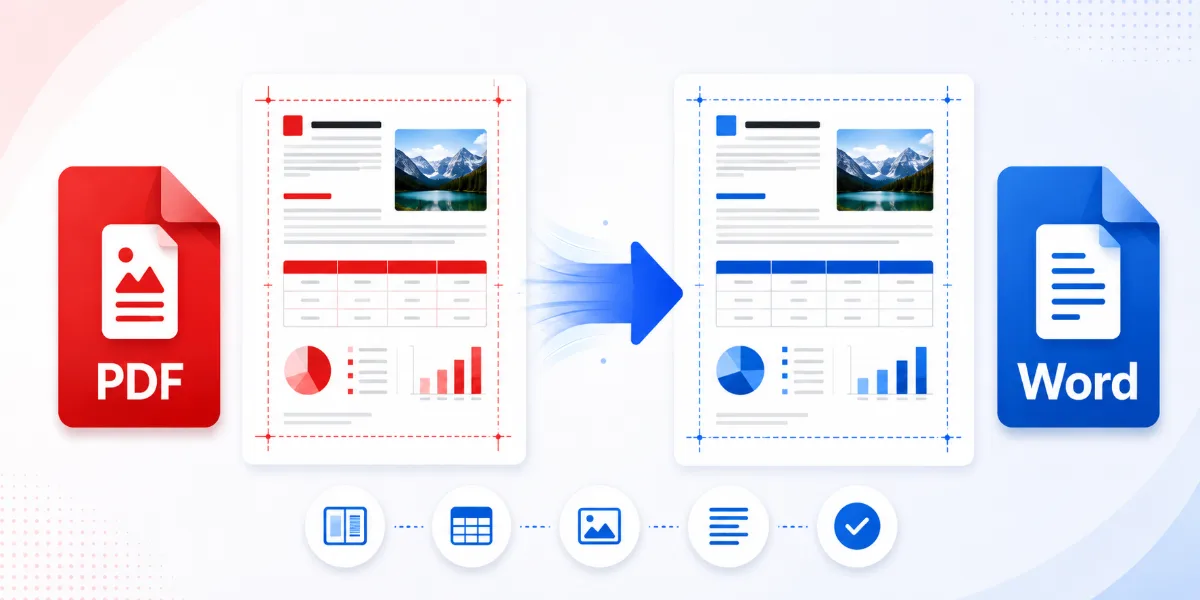
Converting a PDF into a Word document makes it easier to edit text, update information, reuse content, and collaborate with others. However, the converted file may not always match the original perfectly. Missing fonts, broken tables, shifted images, incorrect spacing, changed page breaks, misaligned text, and lost columns are all common problems.
So, how can you convert PDF to Word without formatting issues? No conversion method can guarantee identical results for every document. The best approach is to use a reliable conversion method, choose OCR when the PDF is scanned, and carefully review the resulting Word file before editing or sharing it.
Why Does PDF Formatting Change During Conversion?
PDF and Word were created for different purposes.
A PDF uses a fixed-page layout. Text, images, lines, and other elements are positioned at specific locations on each page. Word documents use flowing, editable content that automatically moves when text, margins, spacing, or page dimensions change.
During PDF-to-Word conversion, the tool must interpret the fixed PDF layout and rebuild it using Word elements such as paragraphs, tables, columns, text boxes, and images. Microsoft explains that converted files may not match the original when Word cannot correctly identify elements such as footnotes, tables, or graphics. PDFs containing mostly charts or graphics may even be converted as page images rather than editable text.
Formatting changes are more likely when a PDF contains:
- Unavailable or embedded fonts
- Complex tables
- Multiple columns
- Text boxes
- Forms and interactive fields
- Decorative page layouts
- Scanned pages
- Low-resolution images
- Unusual symbols or writing systems
Text-Based PDF vs. Scanned PDF
Before converting a file, determine whether it is text-based or scanned.
Text-based PDF
A text-based PDF usually comes from Word, a publishing program, or another digital application. You can normally click and select individual words inside it.
These files generally convert more accurately because the converter can identify real text, fonts, paragraphs, and document structure.
Scanned PDF
A scanned PDF contains photographs or scans of paper pages. The text may look normal, but the computer initially sees it as part of an image.
Scanned files usually require OCR, or optical character recognition. OCR analyzes the page image and attempts to turn visible characters into selectable, searchable, and editable text. Adobe’s documentation confirms that scanned PDFs initially contain image data and require OCR to create searchable text.
OCR accuracy depends on:
- Scan resolution and clarity
- Straight page alignment
- Font readability
- Selected document language
- Handwriting quality
- Shadows, stains, or background noise
OCR can save considerable time, but unclear words and complex layouts may still require manual correction. Adobe provides tools for reviewing uncertain OCR results, confirming that recognition errors can occur.
How to Convert PDF to Word Without Formatting Issues
Follow this beginner-friendly workflow:
1. Choose a reliable PDF-to-Word conversion tool.
2. Upload the correct PDF file.
3. Select Word or DOCX as the output format.
4. Enable OCR if the PDF contains scanned pages.
5. Start the conversion.
6. Download the converted Word document.
7. Open both files and compare them side by side.
8. Correct minor differences before making major edits.
DOCX is the standard modern Word document format and is generally the most suitable output for editable documents. Microsoft identifies DOCX as its default XML-based Word format.
Tips to Preserve PDF Formatting
Use the original digital PDF
Use a digitally generated PDF whenever it is available. Converting a screenshot or scanned copy removes useful document structure and usually produces less accurate results.
Confirm that the file is not damaged
A corrupted or incomplete PDF may contain missing fonts, unreadable objects, or broken pages. Open and review the entire file before conversion.
Use OCR only when needed
OCR is essential for scanned pages, but unnecessary OCR may reinterpret text that is already selectable. First check whether you can select words in the original PDF.
Preserve page orientation
Make sure portrait and landscape pages are correctly rotated before conversion. Incorrect orientation can confuse text recognition and page reconstruction.
Avoid repeated conversion
Do not repeatedly convert a document from PDF to Word, back to PDF, and then to Word again. Every conversion can introduce new spacing or layout changes.
Review important elements
After conversion, inspect:
- Tables and columns
- Headings
- Headers and footers
- Images and captions
- Page numbers
- Lists
- Paragraph spacing
- Page and section breaks
Always keep the original PDF as a reference and backup.
How to Preserve Fonts
Font substitution occurs when Word cannot access or identify the original typeface.
To reduce font problems:
- Use standard fonts when creating source documents.
- Install the required font legally when it is available.
- Check font size, line height, and character spacing.
- Replace unavailable fonts with visually similar alternatives.
- Review bold, italic, accented, and special characters.
Some embedded PDF fonts cannot be used for editing unless the font is installed on the computer. Adobe notes that editing with a specific font requires that font to be installed; otherwise, editing options may be limited.
How to Preserve Tables and Columns
Tables and multi-column pages are among the most difficult elements to reconstruct because a PDF may store them as positioned text and lines rather than as true Word tables.
After conversion:
- Check merged cells.
- Compare row heights and column widths.
- Review borders and cell alignment.
- Confirm that content remains in the correct column.
- Inspect column and section breaks.
- Avoid editing text until the structure has been checked.
If a table is severely damaged, rebuilding it as a real Word table may be faster and more reliable than repeatedly adjusting converted text boxes.
How to Preserve Images and Page Layout
Open the Word file next to the original PDF and check:
- Image position and size
- Text wrapping
- Captions
- Margins
- Page breaks
- Headers and footers
- Page numbers
- Section breaks
If an image moves, select it in Word and review its position and text-wrapping settings. For complicated reports or magazine-style pages, some manual layout correction may be unavoidable.
Best PDF Types for Accurate Conversion
Conversion generally works best with:
- Digitally created PDFs
- Selectable text
- Standard fonts
- Simple layouts
- Clear images
- Well-structured tables
- Correct page orientation
Results may be less accurate with:
- Scanned or handwritten documents
- Complex forms
- Magazine-style layouts
- Multiple overlapping text boxes
- Decorative fonts
- Low-resolution scans
- Password-protected files
Microsoft states that PDF conversion works best with documents that are mostly text and that page or line breaks may move in the converted version.
Online PDF-to-Word Tools vs. Desktop Software
Online tools are suitable for:
- Quick conversions
- Occasional use
- Simple documents
- Users who do not want to install software
- Access from different devices
Desktop software may be better for:
- Sensitive documents
- Offline processing
- Large files
- Batch conversion
- Advanced OCR
- Complicated layouts
- Frequent professional work
Online tools can be convenient, but privacy practices vary. Review how a service processes, stores, and deletes uploaded documents before using it for personal or confidential files.
How to Fix Formatting Problems After Conversion
Incorrect fonts
Replace unavailable fonts and then review spacing, line breaks, bold text, italics, and special characters.
Broken tables
Adjust column widths, cell dimensions, borders, and alignment. Rebuild highly damaged tables when correction becomes inefficient.
Shifted images
Reset image size, position, and text wrapping. Make sure images are not anchored to the wrong paragraph.
Wrong page breaks
Display formatting marks in Word and review manual page breaks, section breaks, paragraph spacing, and “keep with next” settings.
Missing text
Check whether the original page was scanned and required OCR. If the entire page appears as an image, run OCR using a compatible tool.
Misaligned columns
Rebuild the layout using Word columns, tables, or text boxes when the converter cannot reproduce the structure accurately.
Header and footer problems
Recreate headers, footers, and page numbers manually if they were placed inside the main document body.
Privacy and File Safety Tips
- Avoid uploading highly confidential files to unknown services.
- Review the converter’s privacy policy.
- Use trusted websites and secure connections.
- Keep the original file.
- Delete downloaded documents from shared devices.
- Avoid public computers for sensitive work.
- Remove unnecessary personal data before uploading.
- Consider offline desktop software for highly sensitive documents.
Common Mistakes to Avoid
Avoid:
- Expecting every PDF to convert perfectly
- Using a poor-quality scan
- Forgetting OCR for image-based text
- Editing before checking the layout
- Deleting the original PDF too soon
- Ignoring substituted fonts
- Repeatedly converting the same document
- Uploading confidential files to untrusted services
- Failing to inspect tables, images, and page breaks
- Assuming every converter produces identical results
Frequently Asked Questions
Can I convert PDF to Word without losing formatting?
You can usually preserve most formatting in a clear, digitally generated PDF. Complex layouts, unavailable fonts, tables, and scanned content may still require manual corrections.
Why does my PDF look different after conversion?
PDF uses fixed positioning, while Word uses flowing editable content. The converter must rebuild the layout, so line breaks, columns, fonts, and page structure may change.
How do I convert a scanned PDF to Word?
Use a PDF-to-Word tool that supports OCR and select the correct document language when available. After conversion, review the text for recognition errors.
What is OCR, and when do I need it?
OCR converts text visible inside scanned page images into searchable and editable characters. You need it when the PDF’s text cannot be selected normally.
Can tables and images be preserved?
Many converters preserve simple tables and images reasonably well. Complex tables, floating images, and multi-column layouts may require manual adjustment.
Is an online PDF-to-Word converter safe?
Safety depends on the service’s processing, storage, and deletion practices. Review its privacy policy and avoid uploading highly sensitive files to unknown platforms.
Can I convert a password-protected PDF?
Only when you have permission and the required password or authorization. The protection may need to be removed before conversion.
What should I do if the Word file is not editable?
The PDF may contain scanned pages or full-page images. Use an OCR-capable conversion method and verify that the recognized text is accurate.
Conclusion
To convert PDF to Word without formatting issues, start with a clear digital PDF, select DOCX as the output, use OCR only for scanned files, and carefully compare the converted document with the original.
Minor corrections may still be necessary, especially for tables, columns, images, fonts, and page breaks. Keep the original PDF as a backup and review the final Word file before editing, printing, or sharing it.
For a quick conversion, use the appropriate PDF-to-Word tool and inspect the downloaded document before making important changes.
---
SEO Deliverables
Meta Title
How to Convert PDF to Word Without Formatting Issues
Meta Description
Convert PDF to Word without formatting issues. Learn how to preserve fonts, tables, images, spacing, and page layouts in editable DOCX files.
URL Slug
convert-pdf-to-word-without-formatting-issues
Primary Keyword
convert PDF to Word without formatting issues
Secondary Keywords
PDF to Word converter, convert PDF to editable Word, preserve PDF formatting, PDF to DOCX conversion, convert scanned PDF to Word, PDF formatting problems, edit PDF in Word, convert PDF without losing formatting
Featured Snippet Answer
To convert PDF to Word while minimizing formatting problems, use a clear digital PDF, select DOCX output, enable OCR only for scanned documents, and compare the converted file with the original. Review fonts, tables, images, spacing, columns, and page breaks before editing or sharing the Word document.
Suggested Internal Links
- How to compress a PDF
- How to merge PDF files
- How to convert Word to PDF
- How to edit PDF files online
Suggested Image Alt Text
1. PDF document being converted into an editable Word file
2. Comparison of original PDF formatting and converted Word layout
3. Scanned PDF converted to editable Word text using OCR
FAQ Schema Content
Question: Can I [convert PDF to Word](https://pdfnovatools.com/pdf-to-word) without losing formatting?
Answer: Most formatting can often be preserved when the PDF is digitally created and has a simple structure. Complex tables, fonts, columns, images, and scanned pages may still require manual correction.
Question: Why does my PDF look different after conversion?
Answer: PDFs use fixed page positioning, while Word uses flowing editable content. During conversion, the tool reconstructs paragraphs, tables, columns, and images, which may change spacing or page breaks.
Question: How do I convert a scanned PDF to Word?
Answer: Use a converter that supports OCR. OCR analyzes scanned page images and turns recognized text into editable content, although unclear scans may produce errors.
Question: What is OCR, and when do I need it?
Answer: OCR stands for optical character recognition. It is needed when a PDF contains scanned images of text rather than selectable digital text.
Question: Can tables and images be preserved?
Answer: Simple tables and images can often be preserved, but complex structures, floating objects, and multi-column pages may require manual adjustment after conversion.
Question: Is an online PDF-to-Word converter safe?
Answer: It depends on the provider’s security, storage, and deletion practices. Review the privacy policy and avoid uploading confidential documents to unknown services.
Question: Can I convert a [password-protected PDF](https://pdfnovatools.com/protect-pdf)?
Answer: You may convert it when you have permission and the correct password. Document restrictions may need to be removed before conversion.
Question: What should I do if the Word file is not editable?
Answer: The original PDF may contain scanned pages or full-page images. Use an OCR-capable tool and review the recognized text after conversion.
Ready to edit your PDF content? Use our PDF to Word Converter to create an editable Word document while preserving fonts, tables, images, and page layout as accurately as possible.