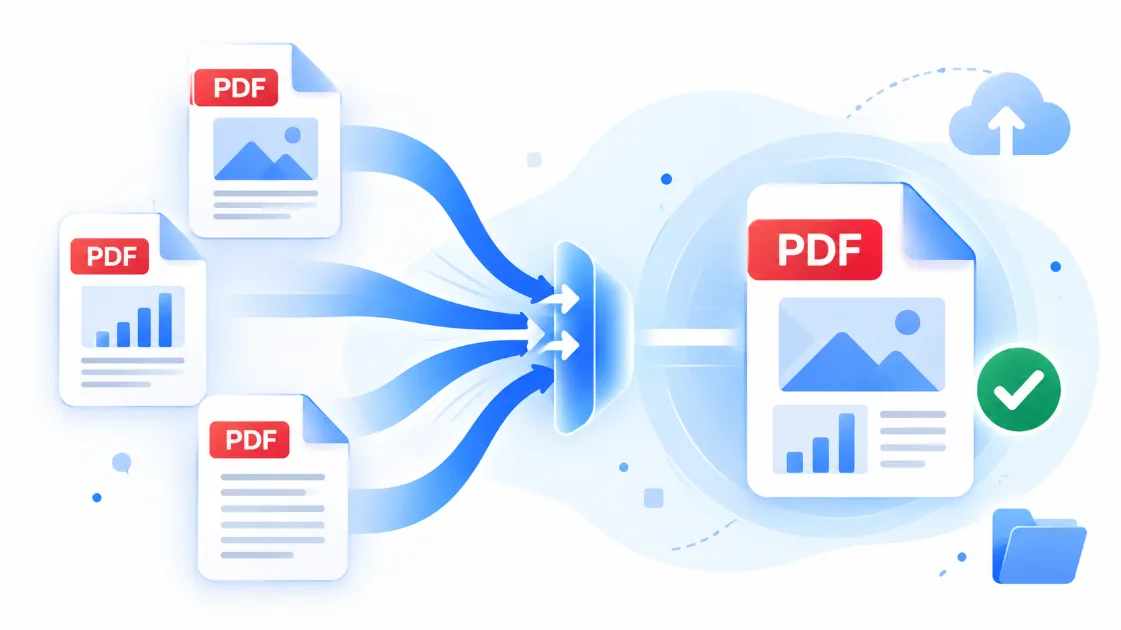
In today's digital-first workplace, PDF files are everywhere — contracts, reports, invoices, scanned documents, eBooks, and presentations. But rarely do these files exist in isolation. More often than not, you need to combine several PDFs into a single, well-organized document. Whether you're compiling a business proposal, assembling a research paper, preparing a portfolio, or organizing receipts for an expense report, knowing how to merge PDF files efficiently can save you significant time and eliminate unnecessary frustration.
This guide walks you through why merging PDFs matters, the most reliable methods available today, and best practices to keep your final document clean, professional, and easy to navigate.
Why Merge PDF Files?
Combining multiple PDFs into one document isn't just a matter of convenience — it offers real, practical benefits:
Simplified sharing. Sending one file is far easier than attaching a dozen separate documents to an email.
Better organization. A single, sequential document is easier to read, print, and archive than scattered files.
Professional presentation. Reports, proposals, and portfolios look more polished when they flow as one cohesive document rather than a collection of disconnected attachments.
Easier searching and referencing. With everything in one file, you can use search functions to locate specific content instantly, rather than opening multiple documents one by one.
Methods for Merging PDF Files
There are several reliable ways to combine PDF documents, depending on your tools, budget, and technical comfort level.
1. Online PDF Merging Tools
Web-based tools are the fastest option for occasional use. You simply upload your files, arrange them in the desired order, and download the merged document. These services typically require no installation and work across any operating system. However, it's worth being mindful of privacy — avoid uploading sensitive or confidential documents to unfamiliar online platforms, and always check a service's data-handling policy before use.
2. Desktop PDF Software
Dedicated PDF editing applications offer more control and are better suited for frequent or large-scale merging tasks. These programs usually allow you to:
- Reorder pages via drag-and-drop
- Remove or rotate individual pages before merging
- Add bookmarks or a table of contents
- Compress the final file size
This approach is ideal for professionals who work with PDFs regularly and need advanced formatting options.
3. Built-In Operating System Tools
Both macOS and Windows offer native ways to combine PDFs without third-party software. On macOS, Preview allows users to drag PDF pages directly into an existing document. On Windows, built-in print-to-PDF functionality can be used creatively to consolidate files, though it offers less flexibility than dedicated software.
4. Command-Line and Scripting Solutions
For developers or power users, command-line tools and scripting libraries provide the most flexibility and can be automated for batch processing. This method is particularly useful for businesses that need to merge large volumes of documents on a recurring basis, such as merging daily reports or invoices automatically.
Best Practices When Merging PDFs
To ensure your final document is polished and functional, keep the following tips in mind:
1. Check the page order before finalizing. Nothing undermines a professional document faster than pages appearing out of sequence.
2. Maintain consistent formatting. If possible, standardize fonts, margins, and page sizes across source documents for a seamless reading experience.
3. Add bookmarks for long documents. If your merged PDF spans many pages or sections, bookmarks make navigation significantly easier for the reader.
4. Compress the final file. Merging several documents can result in a large file size — compression tools help keep it manageable for emailing or uploading.
5. Proofread the final version. Always open and review the complete merged document before sending or publishing it, checking for missing pages, broken links, or formatting inconsistencies.
Conclusion
Merging multiple PDF files into a single document is a small but powerful skill that streamlines communication, presentation, and organization in both professional and personal contexts. Whether you choose a quick online tool, dedicated software, or an automated scripting solution, the goal remains the same: creating a clean, cohesive, and easy-to-navigate document. By following the best practices outlined above, you can ensure your merged PDFs are not only functional but genuinely professional.
Ready to combine your documents? Use our free Merge PDF tool to securely merge multiple PDF files into one document directly in your browser.