Digital documents are easy to create, download, copy, edit, and share. That convenience often creates a new problem: files become scattered across computers, cloud accounts, email attachments, shared drives, and messaging platforms.
Over time, digital clutter can make everyday work slower. Employees may struggle to find the correct version of a report, teams may edit outdated files, and sensitive documents may be stored in the wrong location. Poor document organization can also increase the risk of accidental deletion, duplicate work, unauthorized access, and failed backups.
Efficient digital document management solves these problems by creating a clear system for organizing, naming, storing, protecting, sharing, reviewing, and archiving files.
This guide explains how individuals, remote workers, teams, and business owners can build a practical document management system that saves time, improves collaboration, protects important information, and remains manageable as the number of files grows.
What Is Digital Document Management?
Digital document management is the structured process of handling electronic files throughout their complete lifecycle.
This includes:
- Creating documents
- Naming and organizing files
- Storing documents
- Searching for information
- Sharing files
- Controlling access
- Reviewing and approving content
- Managing versions
- Protecting sensitive information
- Backing up files
- Archiving old documents
- Deleting unnecessary records
Digital document management applies to many file types, including:
- PDF files
- Word documents
- Spreadsheets
- Presentations
- Images
- Scanned documents
- Contracts
- Invoices
- Reports
- Forms
- Project files
- Employee records
- Marketing materials
A good system does more than store files. It creates clear rules for where documents belong, how they should be named, who can access them, which version is official, and how long they should be kept.
Why Poor File Organization Creates Problems
Disorganized digital files can create small delays every day. Over time, those delays become a serious productivity problem.
Files Become Difficult to Find
Documents with unclear names such as `document1.pdf`, `final.docx`, or `scan004.pdf` provide little information.
When a user cannot find a file quickly, they may search through:
- Email attachments
- Downloads folders
- Personal desktops
- Shared drives
- Cloud storage
- Messaging platforms
- External hard drives
A clear document organization system reduces unnecessary searching.
Duplicate Files Create Confusion
Teams often create several copies of the same file:
```text
Report.docx
Report-final.docx
Report-final-new.docx
Report-final-approved-v2.docx
```
Without clear version control, users may not know which document is current.
Employees May Use Outdated Information
Old price lists, contract templates, policies, or product documents may continue to circulate if outdated files are not clearly archived.
This can lead to:
- Incorrect decisions
- Inconsistent communication
- Repeated corrections
- Customer confusion
- Compliance problems
Sensitive Documents May Be Exposed
Poor access control can allow confidential documents to be opened, edited, downloaded, or shared by people who do not need them.
Sensitive files may include:
- Employee records
- Contracts
- Financial documents
- Customer information
- Internal reports
- Legal documents
- Tax records
Backups May Be Incomplete
Files stored only on one laptop, USB drive, or local computer may be lost through:
- Hardware failure
- Theft
- Accidental deletion
- Malware
- File corruption
- Device damage
A reliable digital document management system includes backup and recovery procedures.
How to Create a Clear Folder Structure
A folder structure should be easy to understand, consistent, and scalable.
The goal is to help users predict where a document should be stored without searching through many unrelated folders.
Organize Folders by Stable Categories
Create top-level folders based on departments, business functions, clients, or projects.
Avoid building the system around employee names because staff members may change roles or leave the organization.
Sample Folder Structure for a Small Business
```text
Business Documents/
├── 01_Administration/
│ ├── Policies/
│ ├── Licenses/
│ ├── Insurance/
│ └── Internal Forms/
├── 02_Finance/
│ ├── Invoices/
│ ├── Expenses/
│ ├── Tax Documents/
│ ├── Budgets/
│ └── Financial Reports/
├── 03_Clients/
│ ├── Client_A/
│ │ ├── Contracts/
│ │ ├── Projects/
│ │ └── Invoices/
│ ├── Client_B/
│ └── Client_C/
├── 04_Projects/
│ ├── Active/
│ ├── Completed/
│ └── Archived/
├── 05_Human_Resources/
│ ├── Recruitment/
│ ├── Employee Records/
│ ├── Training/
│ └── Policies/
├── 06_Marketing/
│ ├── Campaigns/
│ ├── Content/
│ ├── Brand Assets/
│ └── Social Media/
└── 07_Legal/
├── Contracts/
├── Agreements/
├── Compliance/
└── Archived Records/
```
Numbering top-level folders helps maintain a consistent order.
Separate Active and Archived Documents
Current documents should not be mixed with completed or outdated files.
Use clear folder names such as:
- Active
- Pending Review
- Approved
- Completed
- Archived
- Expired
This makes it easier to identify which files are still relevant.
Avoid Excessive Folder Depth
A folder structure should provide context without becoming difficult to navigate.
Avoid paths such as:
```text
Company/Departments/Operations/Projects/2026/Clients/Active/Europe/Germany/Final/Documents/
```
Too many levels slow down navigation.
Whenever possible, keep the structure between three and five levels deep.
Best Practices for File Naming
A good filename should explain what the document contains without requiring the user to open it.
Poor File Names
```text
document.pdf
newfile.docx
scan001.pdf
final.xlsx
report-new-final.pdf
```
These names are difficult to search and provide no useful context.
Improved File Names
```text
2026-08-05_Client-A_Service-Agreement_v01.pdf
2026-Q3_Sales-Report_Approved.xlsx
2026-07_Invoice-1048_Client-B.pdf
HR_Remote-Work-Policy_v03_Approved.pdf
Project-Orion_Budget-Review_2026-08-05.docx
```
Recommended Naming Pattern
A useful naming format is:
```text
YYYY-MM-DD_Project_Document-Type_Version_Status
```
For example:
```text
2026-08-05_Website-Redesign_Project-Proposal_v02_Review.docx
```
Include Relevant Information
Depending on the document, include:
- Date
- Client name
- Project name
- Department
- Document type
- Version number
- Status
- Language
- Confidentiality level
Use a Consistent Date Format
The format `YYYY-MM-DD` is recommended because it sorts correctly.
For example:
```text
2026-08-05
```
Avoid mixing date formats such as:
```text
05-08-26
08-05-2026
August5
```
Avoid Special Characters
Some systems may not handle certain characters correctly.
Avoid:
```text
/ \ : * ? " < > |
```
Use hyphens or underscores instead.
How to Use Tags, Keywords, Categories, and Metadata
Folders show where a document is stored. Metadata helps describe what the document contains.
Useful metadata may include:
- Author
- Department
- Client
- Project
- Creation date
- Review date
- Document type
- Approval status
- Confidentiality level
- Retention category
Why Metadata Is Useful
A contract may belong to several categories at the same time:
- A specific client
- A project
- A legal category
- A financial year
- A department
Instead of creating duplicate copies, metadata allows users to find the same document through multiple filters.
Use Controlled Tags
Avoid allowing users to create unlimited tag variations.
For example, these tags may refer to the same department:
```text
HR
Human Resources
human-resources
People Team
Employee Department
```
Choose one standard term and use it consistently.
Remove Duplicate and Outdated Files
Digital clutter grows when documents are downloaded, copied, exported, and renamed repeatedly.
Files to Review Regularly
Look for:
- Exact duplicates
- Old drafts
- Expired documents
- Temporary exports
- Outdated templates
- Repeated downloads
- Files with no clear purpose
- Documents that have already been archived
Use a Review Folder
When you are unsure whether a file should be deleted, move it to a temporary review folder:
```text
_To-Review-Before-Deletion/
```
Assign an owner and review date.
Do not allow the folder to become permanent storage.
Check Retention Requirements
Do not delete legal, financial, employment, or tax documents without checking internal policies and applicable requirements.
Some files may need to be kept for a specific period.
Best Practices for Document Version Control
Version control helps teams identify the current document and prevents users from editing outdated files.
Use Simple Version Numbers
A practical version system may look like this:
```text
Supplier-Agreement_v01_Draft.docx
Supplier-Agreement_v02_Legal-Review.docx
Supplier-Agreement_v03_Approved.pdf
```
Avoid Repeated Use of “Final”
Do not create files such as:
```text
final.docx
final-final.docx
final-new.docx
final-corrected-v3.docx
```
These names make version control more confusing.
Create One Official Source
Every team should know where the official current version is stored.
Email attachments, desktop copies, and chat uploads should not become separate working versions.
Use Built-In Version History
Cloud storage platforms and document management systems may record previous versions automatically.
This allows users to:
- Review changes
- Restore older versions
- Identify editors
- Avoid creating unnecessary copies
Local Storage vs Cloud Storage vs Document Management Systems
| Storage Option | Cost | Ease of Use | Security | Collaboration | Scalability |
|---|---|---|---|---|---|
| Local storage | Low initial cost | Easy for individuals | Depends on device protection | Limited | Limited |
| Cloud storage | Subscription or usage-based | Usually easy | Strong when configured correctly | Very good | Good |
| Document management system | Higher setup cost | May require training | Advanced controls | Excellent | Excellent |
Local Storage
Local storage includes:
- Computer drives
- External hard drives
- USB devices
- Local servers
It may be suitable for:
- Individual users
- Offline work
- Temporary documents
- Small teams with limited collaboration needs
Its main disadvantages are limited remote access, difficult collaboration, and increased backup responsibility.
Cloud Storage
Cloud storage allows users to access files from different devices and locations.
It commonly supports:
- File synchronization
- Shared links
- Comments
- Basic version history
- Remote access
- Team folders
It is useful for:
- Remote teams
- Small businesses
- Shared projects
- Mobile access
- Everyday collaboration
Security depends on correct permissions, strong passwords, multi-factor authentication, and careful link sharing.
Specialized Document Management Systems
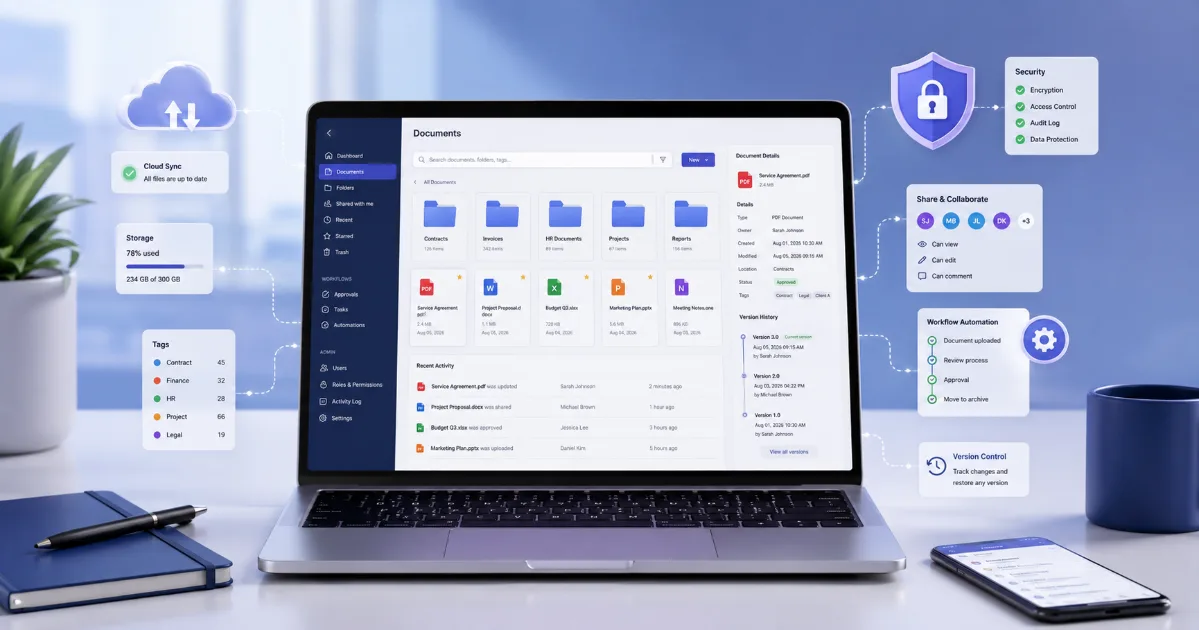
A document management system provides more advanced controls than ordinary cloud storage.
Features may include:
- Metadata
- Approval workflows
- Version history
- Audit logs
- Advanced search
- Retention rules
- Role-based permissions
- Automated document classification
- Check-in and check-out controls
A specialized system is useful for businesses that handle large document volumes, complex approval processes, or strict compliance requirements.
How to Choose the Right Document Management System
Before choosing a platform, identify your real business needs.
Consider:
- Number of users
- Number of documents
- Remote access requirements
- Search features
- Security controls
- Approval workflows
- Existing software integrations
- Mobile access
- Backup and recovery
- Retention requirements
- Ease of administration
- Training needs
- Scalability
A powerful system is not useful if employees find it too complicated to use.
Start with a pilot project involving one team or department before moving all files.
Share Files and Collaborate Securely
Secure collaboration requires clear sharing rules.
Share Links Instead of Attachments
Links reduce duplicate copies and allow access to be removed later.
Attachments may continue circulating after the original document has been updated.
Limit Permissions
Not every user needs full access.
Possible permissions include:
- View
- Comment
- Edit
- Download
- Share
- Approve
- Delete
Use Expiration Dates
Temporary access should not remain active indefinitely.
Set expiration dates for external users when appropriate.
Verify Recipients
Before sharing confidential files, confirm:
- Email addresses
- External users
- Group memberships
- Access settings
- Download permissions
Use Comments and Suggestions
When available, use comments, suggestions, and approval tools instead of sending multiple edited copies.
Manage Roles and Access Permissions
Access should follow the principle of least privilege.
This means users should receive only the permissions necessary for their responsibilities.
Example Roles
- Finance team
- Human resources
- Project managers
- External clients
- Contractors
- Reviewers
- Administrators
Review permissions when:
- An employee changes roles
- A project ends
- A contractor leaves
- A client relationship ends
- A team is reorganized
Old access rights should not remain active.
Backup and Disaster Recovery
Cloud synchronization is not always a complete backup.
If a file is deleted or corrupted, that change may synchronize across multiple devices.
A Reliable Backup Plan Should Include
- Multiple copies
- More than one storage location
- Automated backups
- Versioned backups
- Regular schedules
- Recovery testing
- Clear ownership
- Documented restoration steps
Test Your Backups
A backup should be tested before an emergency occurs.
Verify that:
- Files can be restored
- Folder structures remain intact
- Permissions are preserved
- Important versions are available
- Recovery instructions are current
Protect Sensitive Documents
Sensitive documents require stronger protection.
Security measures may include:
- Encryption
- Strong passwords
- Multi-factor authentication
- Restricted folders
- Expiring links
- Watermarks
- Activity logs
- Device controls
- Download restrictions
Password-protected files can add another layer of control.
Do not send the password and the protected file in the same message.
Automate Repetitive Document Tasks
Workflow automation can reduce repetitive manual work.
Common automation examples include:
- Renaming uploaded documents
- Sorting files by category
- Sending review notifications
- Moving approved documents
- Converting Word files to PDF
- Compressing large PDF files
- Merging related documents
- Extracting invoice data
- Adding retention labels
- Archiving completed projects
- Sending review reminders
Example Document Approval Workflow
```text
Document Created
→ Submitted for Review
→ Reviewer Adds Comments
→ Owner Revises Document
→ Manager Approves
→ Final PDF Created
→ Stored in Approved Folder
→ Archived After Retention Period
```
Automation should support a clear process.
Automating a disorganized process usually creates faster confusion.
How AI Can Improve Document Management
Artificial intelligence can support document management when it is used carefully.
Intelligent Search
AI-powered search can help users find files based on meaning rather than exact filenames.
For example:
```text
latest approved supplier contract for the Berlin project
```
The system may search filenames, metadata, and document content.
Automatic Classification
AI can suggest categories such as:
- Invoice
- Contract
- Resume
- Report
- Policy
- Receipt
- Meeting notes
Sensitive classifications should still be reviewed by a person.
Document Summarization
AI can summarize long reports, contracts, policies, and meeting documents.
This can help users understand the main points before reading the complete file.
Data Extraction
AI and OCR can extract information such as:
- Invoice numbers
- Dates
- Names
- Totals
- Contract terms
- Contact details
- Reference numbers
Duplicate Detection
AI can identify similar files even when filenames are different.
Important AI Limitations
AI summaries, classifications, and extracted information may contain errors.
Important decisions should not rely on automated results without human review.
Confidential documents should only be processed through systems that meet the organization’s privacy and security requirements.
Common Document Management Mistakes
Avoid these common problems:
- Storing everything in one folder
- Using unclear filenames
- Saving uncontrolled copies
- Giving everyone full access
- Mixing drafts with approved files
- Using too many storage platforms
- Treating cloud synchronization as the only backup
- Keeping old user permissions
- Deleting files without retention rules
- Automating unclear workflows
- Relying on AI without verification
- Failing to train employees
A Practical Seven-Day Document Management Plan
Day 1: Audit Existing Files
Identify where documents are currently stored.
Review:
- Computers
- Shared drives
- Cloud platforms
- Email attachments
- External drives
- Messaging applications
Day 2: Design the Folder Structure
Create top-level folders based on stable categories.
Separate active, approved, completed, and archived documents.
Day 3: Create File Naming Rules
Choose a standard naming format.
Write a short internal guide with clear examples.
Day 4: Remove Digital Clutter
Identify duplicates, old drafts, outdated templates, and unnecessary files.
Move uncertain files to a review folder.
Day 5: Configure Storage and Permissions
Choose the primary storage location.
Assign access according to roles and responsibilities.
Day 6: Create Backup and Workflow Rules
Set automated backups and create a simple document approval process.
Day 7: Train Users and Test the System
Explain:
- Where files belong
- How to name documents
- How to share files
- Which version is official
- How to request access
- How to report problems
Review the system after one month and correct any weaknesses.
Digital Document Management Checklist
- [ ] One primary location exists for official documents.
- [ ] Folder structures follow clear business categories.
- [ ] Active and archived files are separated.
- [ ] Filenames follow a consistent format.
- [ ] Dates use a standard format.
- [ ] Duplicate files are reviewed regularly.
- [ ] Outdated documents are archived or removed.
- [ ] Version control rules are documented.
- [ ] Approved files are clearly identified.
- [ ] Access permissions follow user roles.
- [ ] Former users no longer have access.
- [ ] Sensitive documents are protected.
- [ ] Shared links are controlled.
- [ ] Important documents are backed up.
- [ ] Backup recovery has been tested.
- [ ] Retention and deletion rules are defined.
- [ ] Employees understand the document workflow.
- [ ] Automation supports repetitive tasks.
- [ ] AI-generated results are reviewed.
- [ ] The system is reviewed regularly.
Frequently Asked Questions
What Is the Best Way to Organize Digital Documents?
Use a simple folder structure based on departments, projects, clients, or document types. Combine it with consistent file naming, version control, metadata, permissions, and regular cleanup.
How Often Should Digital Files Be Archived?
Files should be archived when they are no longer needed for daily work but must still be retained. The schedule depends on project timelines, business needs, internal policies, and applicable retention requirements.
Is Cloud Storage Secure for Business Documents?
Cloud storage can be suitable for business documents when permissions, authentication, sharing settings, and backups are configured correctly. Security depends on both the provider and how the organization manages access.
What Is the Difference Between Cloud Storage and a Document Management System?
Cloud storage focuses mainly on storing, synchronizing, and sharing files. A document management system adds advanced features such as metadata, approval workflows, audit records, retention policies, and detailed access controls.
How Can AI Improve Document Management?
AI can improve search, classification, summarization, duplicate detection, OCR, and data extraction. Important results should still be reviewed by a person.
Should Documents Be Stored Locally or in the Cloud?
The best option depends on collaboration, internet access, security, backup, and compliance needs. Many organizations use cloud storage for collaboration and separate backups for recovery.
How Can Teams Prevent Duplicate Files?
Use one official storage location, share links instead of attachments, enable version history, define document ownership, and review folders regularly.
Conclusion
Efficient digital document management requires more than creating folders. A reliable system combines document organization, consistent naming, version control, secure sharing, access permissions, backups, automation, and regular maintenance.
Start with the most important steps:
1. Choose one primary location for official documents.
2. Create a clear folder structure.
3. Apply consistent naming and version rules.
4. Separate active and archived files.
5. Protect sensitive information.
6. Review permissions and backups.
7. Automate repetitive tasks carefully.
8. Train users to follow the same process.
Do not try to reorganize every file at once.
Start with one department, project, or document category. Test the system, correct any weaknesses, and gradually expand it.
Begin today by reviewing your most frequently used folders, renaming unclear files, removing obvious duplicates, and deciding where approved documents should be stored.
Ready to organize and manage your files more efficiently? Explore PDFNova Tools to convert, compress, merge, protect, and optimize your digital documents in one convenient place.