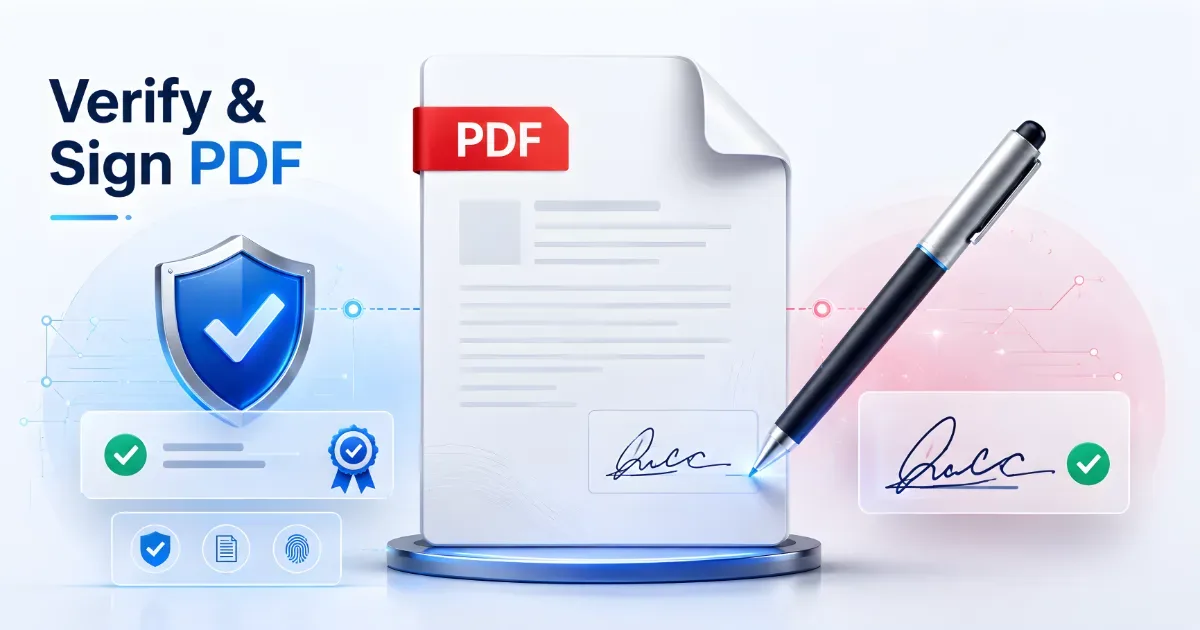
Sending contracts, certificates, invoices, agreements, and other important documents as PDF files is convenient, but it also raises an important question: How can you know whether a signed document is authentic and whether it has been changed after signing?
Digital signatures help address that problem by adding verifiable information to a PDF. They can help establish who signed a document and whether its contents have changed since the signature was applied.
Two useful tools serve different parts of this workflow:
- Digital Sign PDF is used when you need to digitally sign a PDF document.
- Verify Signature is used when you receive an already signed PDF and want to inspect its digital signature.
Although the two tools deal with digital signatures, they perform different jobs. Understanding that distinction is important when working with contracts, financial documents, certificates, business records, or other signed PDF documents.
What Is a Digital Signature in a PDF?
A digital signature is a method of attaching verifiable signing information to a digital document.
It is different from simply typing your name or inserting an image of a handwritten signature.
A proper digital signature PDF workflow can help provide information related to several important aspects of a document.
Document Authenticity
A digital signature can help users determine whether the document was signed using the credentials associated with the signer.
This does not mean you should automatically trust every signed PDF. Signature information still needs to be reviewed, particularly when a document comes from an unfamiliar sender.
Signer Identity
Digital signatures can include information that helps identify the signer or the certificate associated with the signature.
The exact information available depends on how the PDF was signed.
Document Integrity
One of the most useful properties of a digital signature is its relationship with document integrity.
If a PDF is modified after signing, signature validation may indicate that changes have occurred.
This is useful because a contract or certificate that looked legitimate when signed could become misleading if somebody later changed important content.
Detecting Modifications
A signature verification process may help determine whether the signed PDF document has remained unchanged since the signature was created.
For example, modifications to:
- Contract terms
- Payment amounts
- Dates
- Names
- Pages
- Attachments
- Other document content
may affect the status of the digital signature.
Supporting Digital Workflows
Digital signatures can make it easier to handle approvals and signed documents without repeatedly printing, signing, scanning, and emailing paper copies.
They are especially useful for remote teams and organizations that exchange documents electronically.
What Is the Verify Signature Tool?
Verify Signature is designed to inspect digital signatures that already exist inside a PDF.
You use it after receiving a signed PDF rather than when creating the signature.
Its purpose is to help answer questions such as:
- Is the PDF digitally signed?
- Is there a digital signature available to inspect?
- Can the signature information be validated?
- Does the signature appear valid?
- Has the PDF been modified after signing?
- Is there information available about the signature or signer?
This makes PDF signature verification especially useful before relying on an important document.
For example, imagine receiving a signed agreement by email. The document looks normal, but appearance alone does not tell you whether the PDF has changed since it was signed.
Using a tool to verify PDF signature information can provide additional context before you accept, archive, or act on the document.
Why Use Verify Signature?
Signature verification is useful whenever the authenticity or integrity of a signed document matters.
Business Contracts
Companies regularly exchange contracts through email or online document systems.
Before relying on a digitally signed contract, verifying its signature can help determine whether the signature is present and whether the document appears to have changed after signing.
Legal Documents
Legal documents may contain important dates, obligations, names, clauses, and signatures.
Verifying a digital signature can provide useful information about the signed version of the document.
It should not be treated as a substitute for professional legal advice when legal validity is in question.
Financial Documents
Signed financial documents may include:
- Payment agreements
- Financial statements
- Account-related documents
- Purchase approvals
- Expense authorizations
When receiving such files electronically, signature verification adds an additional review step.
Certificates
Digital certificates, completion certificates, training documents, and other official-looking PDFs may contain digital signatures.
Verification can help determine whether an embedded signature can be validated.
Invoices
Some businesses digitally sign invoices or related commercial documents.
If a signed invoice contains important payment details, verifying its digital signature can be useful before processing it.
Government and Administrative Documents
Administrative PDFs may include digital signatures from organizations, departments, or authorized individuals.
Verification can provide more information about whether the document has remained unchanged since signing.
Agreements Received by Email
Email is convenient, but an email attachment should not automatically be trusted just because it appears to come from a familiar person.
When a sensitive signed agreement arrives by email, consider both:
- Verifying the digital signature
- Confirming the sender through an appropriate communication channel
How to Verify a PDF Signature
The exact interface depends on the tool being used, but a typical workflow is straightforward.
Step 1: Prepare the Signed PDF
Locate the PDF containing the digital signature you want to inspect.
Whenever possible, use the original file you received rather than a version that has been edited, converted, or resaved multiple times.
Step 2: Open the Verify Signature Tool
Access the PDF signature verification tool.
Step 3: Select or Upload the PDF
Choose the signed PDF document you want to verify.
For sensitive documents, review the tool's privacy practices before uploading confidential material.
Step 4: Start the Verification Process
Allow the tool to inspect the digital signature information available inside the document.
Step 5: Review the Verification Information
Check the information presented about the signature.
Depending on the PDF and the signing method, this may include details about:
- Signature presence
- Signature status
- Signer information
- Document integrity
- Whether changes were detected
Step 6: Review the Document Itself
Do not rely only on the signature status.
Read the actual PDF and confirm that:
- Names are correct
- Dates are correct
- Amounts are correct
- Pages are complete
- Attachments or referenced sections are present
Step 7: Confirm Sensitive Information When Necessary
If the document is particularly important, consider confirming the sender's identity through a trusted communication method.
Signature verification is useful, but it should be part of a broader document-review process.
What Is the Digital Sign PDF Tool?
Digital Sign PDF is used to apply a digital signature to a PDF document.
This is different from Verify Signature.
With Digital Sign PDF, you are working on the document before sending or distributing it as a digitally signed PDF.
The goal is to attach digital signing information that can later be inspected or verified.
Digital Signature vs. Signature Image
This distinction is important.
If you scan your handwritten signature and place the image at the bottom of a PDF, you have added a visual signature.
It may look like this:
John Smith
with an image of John's handwritten signature underneath.
However, the image itself does not automatically provide the same verification capabilities as a digital signature.
A digital signature is associated with signing information that can help support checks related to document integrity and signer information.
Therefore:
Signature image ≠ digital signature
They may look similar visually, but technically they serve different purposes.
Why Use Digital Sign PDF?
A tool that allows users to digitally sign PDF documents can support more efficient electronic document workflows.
Authenticate Documents
Applying a digital signature can provide information associated with the signer and the signed version of the PDF.
Improve Confidence
Recipients can inspect the signature rather than relying only on a visual signature image.
This can provide additional confidence when reviewing important documents.
Protect Document Integrity
Digital signing can make subsequent document changes detectable during signature validation.
This is particularly useful when important terms should remain unchanged after approval.
Streamline Approvals
Businesses frequently move documents between employees, managers, clients, and suppliers.
Digital signatures can reduce the number of steps required to approve and return documents.
Reduce Printing and Scanning
Traditional signing often involves:
1. Printing the PDF.
2. Signing the paper.
3. Scanning it again.
4. Saving another PDF.
5. Emailing the scan.
Digital signing can simplify that workflow.
Support Paperless Workflows
For remote teams, freelancers, businesses, and individuals, digitally signed PDFs can help reduce dependence on paper-based document processes.
How to Digitally Sign a PDF
The exact steps depend on the tool and signing method, but a typical process works like this.
Step 1: Prepare the Final PDF
Before signing, review the document carefully.
Check:
- Names
- Dates
- Payment details
- Page order
- Attachments
- Contract terms
- Form fields
Signing should generally happen after the document content is finalized.
Step 2: Open the Digital Sign PDF Tool
Access the tool used to digitally sign PDF documents.
Step 3: Select the PDF
Choose or upload the document you want to sign.
If the PDF contains sensitive information, make sure you understand how the service handles uploaded files.
Step 4: Follow the Signing Process
Complete the signing process provided by the tool.
The exact process can vary depending on the available signing method, so avoid assuming that every service uses identical certificates, credentials, or authentication methods.
Step 5: Apply the Digital Signature
Complete the signing action according to the tool's instructions.
Step 6: Save or Download the Signed PDF
Download or save the signed version of the document.
Keep the unsigned original if you may need it later.
A simple naming convention can help:
`Contract_Unsigned.pdf`
`Contract_Digitally-Signed.pdf`
Step 7: Verify the Signed Copy
For important documents, it can be useful to run the signed PDF through a verification process.
This lets you confirm that the signature information can be inspected before sending the document to somebody else.
Verify Signature vs. Digital Sign PDF
| Feature | Verify Signature | Digital Sign PDF |
|---|---|---|
| Main purpose | Inspect an existing digital signature | Apply a digital signature to a PDF |
| Used before/after signing | After signing | During the signing process |
| Checks signature information | Yes | Not its primary purpose |
| Helps detect document changes | Through signature validation where supported | Creates the signed state that can later be checked |
| Adds a digital signature | No | Yes |
| Typical user | Recipient or reviewer | Document sender, approver, or signer |
| Common use cases | Contracts, certificates, invoices, signed agreements | Approvals, agreements, business documents, forms |
| Works with existing signed PDFs | Yes | Intended for PDFs that need signing |
These tools are not competitors.
They are complementary parts of the same workflow.
Digital Sign PDF → Sign the document
Verify Signature → Check the signed document
When Should You Use Each Tool?
Use Verify Signature When You Receive a Signed PDF
Imagine that a supplier sends you a digitally signed agreement.
Before approving a payment or storing the agreement as the official copy, you may want to verify the digital signature.
The verification step can help you inspect the signature and determine whether the document shows signs of modification after signing.
Use Digital Sign PDF When You Need to Approve a Document
Suppose you have prepared a final agreement for a client.
Instead of printing, signing, scanning, and emailing it, a digital signing workflow can allow you to create a digitally signed PDF directly.
Use Both in the Same Workflow
The two tools are especially useful together.
A typical workflow might be:
1. Prepare the final PDF.
2. Review the document.
3. Use Digital Sign PDF.
4. Save the signed copy.
5. Send the signed PDF.
6. The recipient uses Verify Signature.
7. The recipient reviews the signature and document contents.
This creates a much clearer digital document process.
Benefits of Digital PDF Workflows
Digital signature tools can provide practical advantages for modern document management.
Faster Document Processing
Documents can move between people without waiting for printing, physical signatures, scanning, or postal delivery.
Remote Collaboration
Employees, freelancers, customers, and business partners can exchange signed documents from different locations.
Reduced Paperwork
Digital workflows can reduce unnecessary printing and scanning.
Better Document Traceability
Signed documents can be stored with clear filenames, dates, and version histories.
For example:
`Supplier_Agreement_Unsigned.pdf`
`Supplier_Agreement_Signed_2026-08-20.pdf`
Improved Confidence in Document Authenticity
Verification information can provide useful evidence when evaluating whether a signed PDF appears unchanged and whether signature information is available.
It should still be combined with sensible checks of the sender, document contents, and surrounding circumstances.
Best Practices for Working With Digitally Signed PDFs
A few habits can make signed-document workflows more reliable.
Verify Important Documents Before Trusting Them
If a contract, certificate, or financial document contains a digital signature, review the signature before relying on the document.
Keep Original Signed Copies
Avoid repeatedly converting or resaving signed documents.
Keep the original signed PDF as a reference copy.
Avoid Modifying a Signed PDF
Changes made after signing may affect signature validation.
If the document needs significant changes, it may be better to revise the unsigned source and sign the updated version again.
Review Signature Information Carefully
Do not treat the presence of a signature icon alone as proof that everything is valid.
Review the available verification information.
Use Trusted Devices and Connections
Handle sensitive PDFs on devices you trust and avoid exposing confidential documents unnecessarily.
Confirm the Sender When Necessary
For high-value transactions or sensitive agreements, verify the sender through an appropriate communication channel.
A digitally signed attachment does not remove the need for basic security awareness.
Frequently Asked Questions
What Is the Difference Between an Electronic Signature and a Digital Signature?
An electronic signature is a broad term for electronic methods of indicating agreement or approval. It can include typed names or certain signature images.
A digital signature uses technical signing information that can support verification of the signature and document integrity.
Can I Verify Whether a PDF Has Been Changed After Signing?
Digital signature validation can often indicate whether a document has been modified after the signature was applied.
The exact information available depends on the signature and PDF.
Does Verify Signature Add a Signature to My PDF?
No.
Verify Signature is intended to inspect an existing digital signature. Use Digital Sign PDF when you need to add a digital signature.
Does Digital Sign PDF Verify Existing Signatures?
Its primary purpose is signing a PDF rather than validating an existing signature.
Use Verify Signature when you need to inspect an already signed document.
Can a Digitally Signed PDF Be Edited?
A PDF may still be technically editable depending on the software and document restrictions.
However, editing the document after it has been signed may affect the digital signature's validation status.
Why Does a Digital Signature Sometimes Appear Invalid?
Possible reasons can include document modifications, problems with signature information, certificate-related issues, or limitations in the software being used to validate the signature.
An invalid status should be investigated rather than ignored.
Is Inserting a Signature Image the Same as Digitally Signing a PDF?
No.
A signature image is primarily visual. A digital signature contains additional technical information that can support verification and document-integrity checks.
Conclusion
Digital Sign PDF and Verify Signature solve two different but closely related document problems.
Use Digital Sign PDF when you need to sign and authenticate a PDF as part of an electronic document workflow.
Use Verify Signature when you receive a signed PDF and want to inspect and validate the existing digital signature.
Together, they can create a practical workflow:
Digital Sign PDF → Sign and authenticate the document
Verify Signature → Check and validate the existing signature
If you are preparing a document for approval, choose Digital Sign PDF. If you have already received a signed PDF and need to inspect its signature, choose Verify Signature.
---
On-Page SEO Deliverables
SEO Title
Verify Signature vs Digital Sign PDF: Complete Guide
Meta Description
Learn how Verify Signature and Digital Sign PDF work, how to sign or verify PDF signatures, and when to use each tool for secure document workflows.
Suggested URL Slug
verify-signature-digital-sign-pdf
Primary Keyword
verify PDF signature
Secondary Keywords
- Verify Signature
- Digital Sign PDF
- digital signature PDF
- verify digital signature
- PDF signature verification
Alternative Article Titles
1. Verify PDF Signatures and Digitally Sign PDFs: Complete Guide
2. Digital Sign PDF vs Verify Signature: What Is the Difference?
3. How to Sign and Verify Digital Signatures in PDF Documents
Use our Verify Signature tool to inspect and validate an existing PDF signature, or choose Digital Sign PDF when you need to digitally sign and authenticate a PDF document.